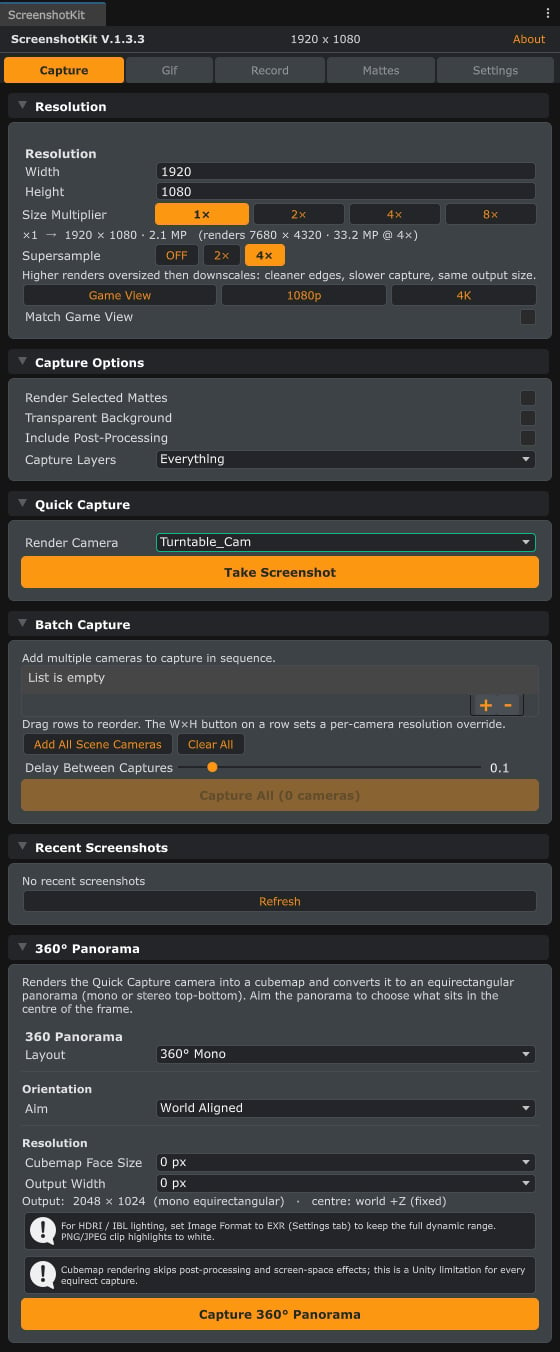
The Capture tab. Resolution and supersampling at the top, then capture options, quick capture, batch capture, and 360 degree panorama.
Steps
1
Open the Capture tab
In the ScreenshotKit window, click the Capture tab.
2
Set the resolution
Under Resolution, set width and height, or click a preset such as 1080p, 4K, or Game View. Optionally raise Size Multiplier (1x to 8x) for supersampled output.
3
Set capture options
Under Capture Options, toggle Transparent Background if you want an alpha channel, and pick a Capture Layers mask if you want to exclude layers.
4
Capture
Click Take Screenshot, or press Ctrl+Shift+S from the Game View, or Ctrl+Shift+Alt+S from the Scene View.
Result
A single image file saved to your Save Location. The filename is built from your filename template (camera name, timestamp, resolution, prefix, suffix; see Filename Format).See also
- Runtime API: single capture to drive captures from your own scripts.
- Batch Capture to shoot every camera in the scene at once.