> ## Documentation Index
> Fetch the complete documentation index at: https://dacruzdev.mintlify.site/llms.txt
> Use this file to discover all available pages before exploring further.
# Capture a 360 Degree Panorama in ScreenshotKit
> Capture mono or stereo top-bottom equirectangular panoramas for VR viewers, skybox previews, and store pages, aimed from your capture camera.
Use this when you want an equirectangular 360 degree image for VR viewers, skybox previews, store pages, or social posts (mono), or a stereo top-bottom panorama for VR video players.
 ## Steps
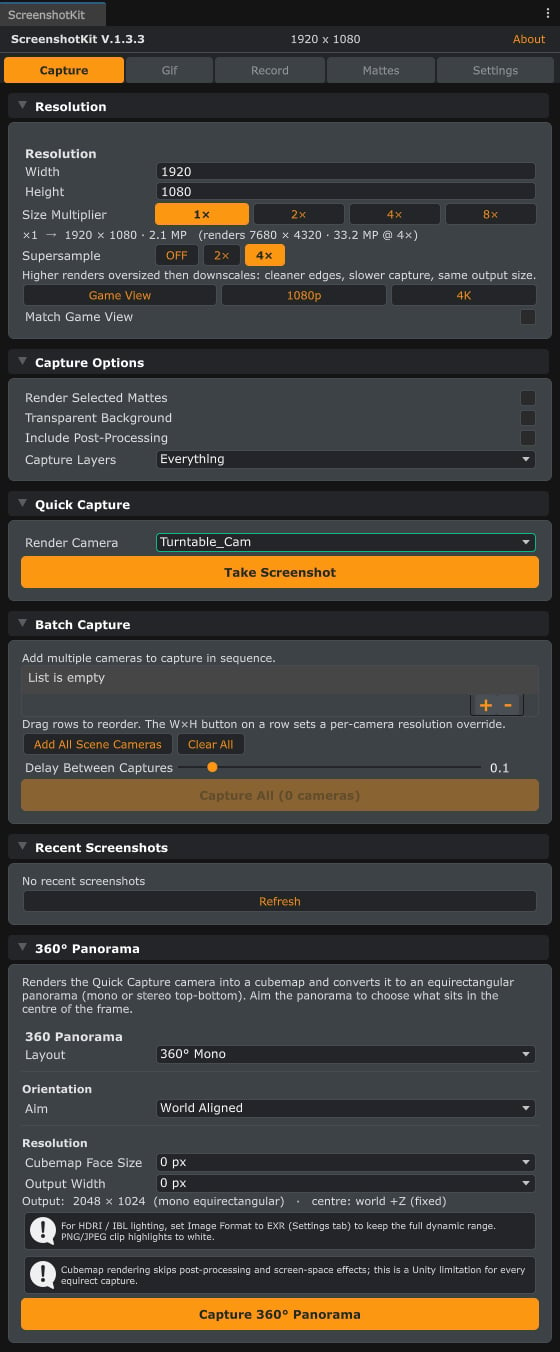
Open the **Capture** tab and expand **360° Panorama** at the bottom.
Choose **360° Mono** (2:1 image) or **360° Stereo (Top-Bottom)** (1:1 image, left eye on top). Stereo also exposes **Eye Separation** (0.065 m matches a typical interpupillary distance).
The **Aim** option controls where the panorama centres:
| Mode | Behaviour |
| ----------------- | ------------------------------------------------------------------------------------------------------------------------------- |
| **Camera Facing** | The Quick Capture camera's direction sets the image centre, so what you see in the viewport ends up in the middle of the frame. |
| **World Aligned** | The panorama centres on the world +Z axis, matching Unity's default skybox orientation. |
With **Camera Facing**, the **Level Horizon** toggle keeps the horizon straight (only the camera's yaw is used). Turn it off to tilt the panorama with the camera's full rotation. Stereo captures always keep the horizon level so the eye separation stays valid.
Pick a **Cubemap Face Size** (render sharpness) and an **Output Width**.
Click **Capture 360° Panorama**. The Quick Capture camera position is used as the panorama's viewpoint.
## Result
An equirectangular image saved through the normal filename and format pipeline with a `Pano360` (or `Pano360Stereo`) suffix, and copied to the clipboard when that option is on.
Cubemap rendering skips post-processing and screen-space effects (a Unity limitation for every equirect capture tool), so bake the look you want into the scene lighting.
A 4096 output width is plenty for social and store use; 8192 is for print or high-end VR.
## See also
* `PanoramaCapture.Capture(camera, settings)` in the runtime assembly for scripted panoramas; see the [Runtime API overview](/api/overview).
## Steps
Open the **Capture** tab and expand **360° Panorama** at the bottom.
Choose **360° Mono** (2:1 image) or **360° Stereo (Top-Bottom)** (1:1 image, left eye on top). Stereo also exposes **Eye Separation** (0.065 m matches a typical interpupillary distance).
The **Aim** option controls where the panorama centres:
| Mode | Behaviour |
| ----------------- | ------------------------------------------------------------------------------------------------------------------------------- |
| **Camera Facing** | The Quick Capture camera's direction sets the image centre, so what you see in the viewport ends up in the middle of the frame. |
| **World Aligned** | The panorama centres on the world +Z axis, matching Unity's default skybox orientation. |
With **Camera Facing**, the **Level Horizon** toggle keeps the horizon straight (only the camera's yaw is used). Turn it off to tilt the panorama with the camera's full rotation. Stereo captures always keep the horizon level so the eye separation stays valid.
Pick a **Cubemap Face Size** (render sharpness) and an **Output Width**.
Click **Capture 360° Panorama**. The Quick Capture camera position is used as the panorama's viewpoint.
## Result
An equirectangular image saved through the normal filename and format pipeline with a `Pano360` (or `Pano360Stereo`) suffix, and copied to the clipboard when that option is on.
Cubemap rendering skips post-processing and screen-space effects (a Unity limitation for every equirect capture tool), so bake the look you want into the scene lighting.
A 4096 output width is plenty for social and store use; 8192 is for print or high-end VR.
## See also
* `PanoramaCapture.Capture(camera, settings)` in the runtime assembly for scripted panoramas; see the [Runtime API overview](/api/overview).