> ## Documentation Index
> Fetch the complete documentation index at: https://dacruzdev.mintlify.site/llms.txt
> Use this file to discover all available pages before exploring further.
# Record an Animated GIF in ScreenshotKit
> Record smooth, looping animated GIFs directly from Play Mode using ScreenshotKit's threaded encoder, for devlogs, social posts, and store previews.
Use this for quick shares, social posts, devlog clips, and looping previews for store pages. Encoding runs on a background thread so Play Mode stays responsive while recording, and the file is finalised automatically after you stop.
 ## Steps
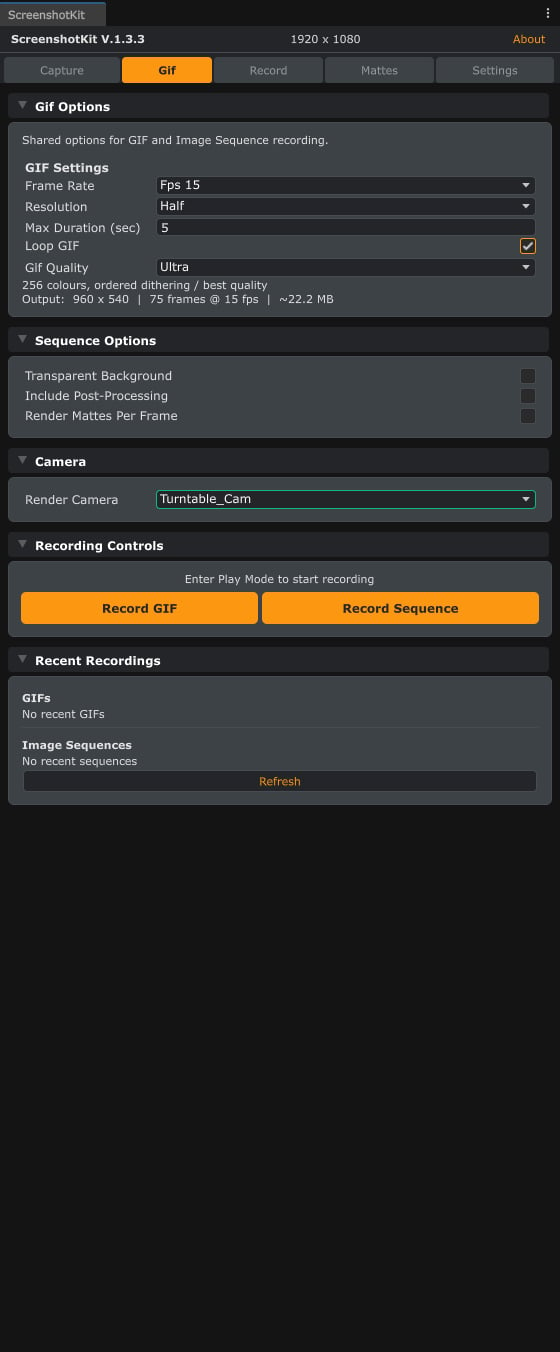
In the ScreenshotKit window, click the **Gif** tab.
Expand **Camera** and assign the camera to record from. If you leave this unset, ScreenshotKit defaults to `Camera.main` at runtime.
Expand **Gif Options** and configure:
* **Frame Rate**: 5, 10, 15, 30, or 60 fps, or **Custom** up to 244 fps.
* **Resolution**: Full, Half, or Quarter of your base resolution.
* **Max Duration**: how long to record, in seconds.
* **Loop GIF**: whether the output GIF loops.
* **Gif Quality**: Low, Medium, High, or Ultra colour compression, trading quality against file size.
Enter Play Mode. Press **Start Recording** in the window, play through whatever you want to capture, then press **Stop Recording**. Alternatively, tick **Auto-Record on Play** to start recording automatically when you enter Play Mode.
## Result
A `.gif` file saved to your configured GIF output folder. The window shows the estimated file size up front and live recording progress while it captures, and recent recordings are listed at the bottom of the tab.
GIF encoding is threaded. Capture stays smooth during Play Mode and the encoder finalises the file after you stop. Larger or longer GIFs take longer to finalise.
For sharp loops, keep resolution at **Half** and pick **Medium** or **High** compression. Full resolution at low compression produces large files that social platforms may reject.
The in-memory frame buffer is capped at **512 MB**. If your settings would exceed that, the recorder caps the duration and logs a warning. Drop resolution, frame rate, or duration to capture the full take.
## See also
* [Runtime API: GifRecorder](/api/gif-recorder) to record GIFs from your own scripts in a build.
* [Video Recording](/workflows/video-recording) when you want MP4 or WebM instead of GIF.
## Steps
In the ScreenshotKit window, click the **Gif** tab.
Expand **Camera** and assign the camera to record from. If you leave this unset, ScreenshotKit defaults to `Camera.main` at runtime.
Expand **Gif Options** and configure:
* **Frame Rate**: 5, 10, 15, 30, or 60 fps, or **Custom** up to 244 fps.
* **Resolution**: Full, Half, or Quarter of your base resolution.
* **Max Duration**: how long to record, in seconds.
* **Loop GIF**: whether the output GIF loops.
* **Gif Quality**: Low, Medium, High, or Ultra colour compression, trading quality against file size.
Enter Play Mode. Press **Start Recording** in the window, play through whatever you want to capture, then press **Stop Recording**. Alternatively, tick **Auto-Record on Play** to start recording automatically when you enter Play Mode.
## Result
A `.gif` file saved to your configured GIF output folder. The window shows the estimated file size up front and live recording progress while it captures, and recent recordings are listed at the bottom of the tab.
GIF encoding is threaded. Capture stays smooth during Play Mode and the encoder finalises the file after you stop. Larger or longer GIFs take longer to finalise.
For sharp loops, keep resolution at **Half** and pick **Medium** or **High** compression. Full resolution at low compression produces large files that social platforms may reject.
The in-memory frame buffer is capped at **512 MB**. If your settings would exceed that, the recorder caps the duration and logs a warning. Drop resolution, frame rate, or duration to capture the full take.
## See also
* [Runtime API: GifRecorder](/api/gif-recorder) to record GIFs from your own scripts in a build.
* [Video Recording](/workflows/video-recording) when you want MP4 or WebM instead of GIF.