> ## Documentation Index
> Fetch the complete documentation index at: https://dacruzdev.mintlify.site/llms.txt
> Use this file to discover all available pages before exploring further.
# ScreenshotKit Settings Tab Overview
> Configure capture options, output paths, file formats, filename templates, watermark, recording, presets, and shortcuts in the Settings tab.
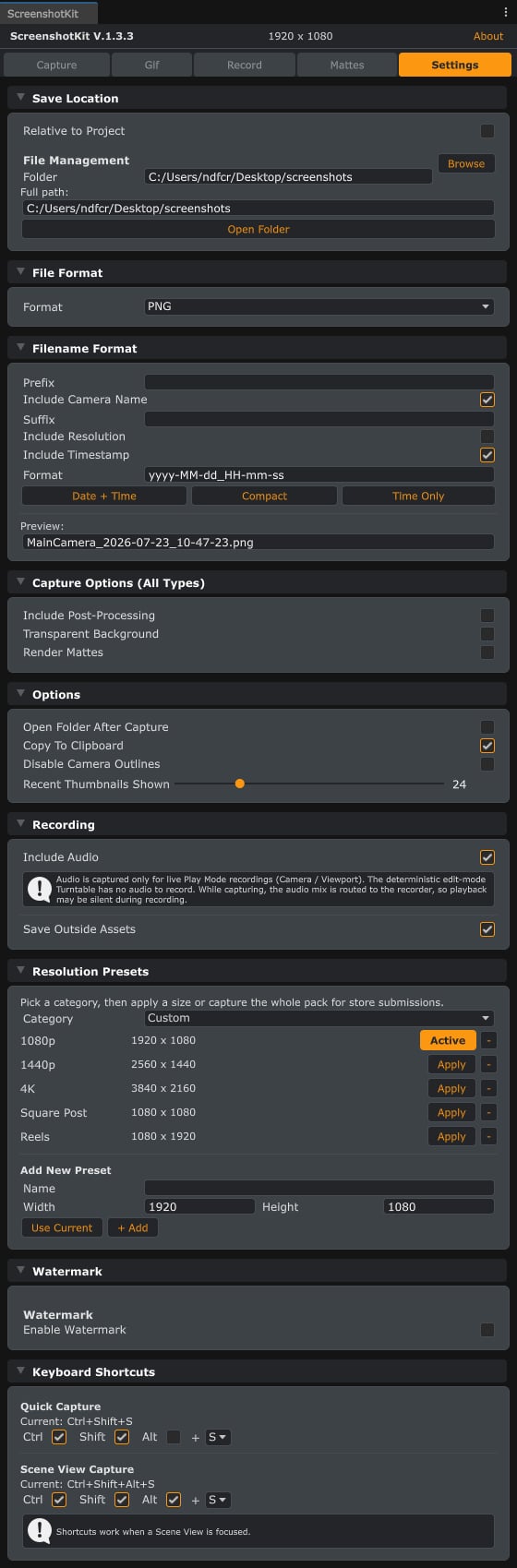
The **Settings** tab holds everything that applies across capture types. Sections from top to bottom:
 ## Save Location
* **Relative to Project**: treat the folder as project-relative (inside `Assets/`) rather than absolute.
* **Folder**: where screenshots are written. Defaults to `Assets/ScreenshotKit/Screenshots`. Click **Open Folder** to verify.
## File Format
* **Format**: PNG, TGA, JPEG, or EXR (see [Image Formats](/configuration/image-formats)).
* JPEG exposes a quality slider; EXR exposes **Compression** (None / ZIP / RLE) and **32-bit Float** for full HDR output.
## Filename Format
Prefix, suffix, camera name, resolution, and timestamp tokens, with a live preview. See [Filename Format](/configuration/filename-format).
## Capture Options (All Types)
* **Include Post-Processing**: whether captures include post-processing effects.
* **Transparent Background**: capture with an alpha channel (see [Transparent PNG](/workflows/transparent-png) for the alpha source modes).
* **Render Mattes**: render every enabled matte pass alongside each capture (see [Cryptomatte & AOV](/workflows/cryptomatte-aov)).
## Options
* **Open Folder After Capture**: pops the OS file explorer at the output path after every shot. Handy when iterating, distracting in long batches.
* **Copy To Clipboard**: also place each capture on the OS clipboard (on by default). Screenshots are copied as an image; GIFs and videos are copied as a file drop, ready to paste into Explorer, Discord, and the like. On Windows the image clipboard holds both a universal bitmap and a PNG, so transparency survives pasting into apps that support it. macOS and Linux support is editor-only and best-effort (Linux needs `xclip` on the PATH).
* **Disable Camera Outlines**: turn off the emerald Render Camera markers, both the always-on outline around the camera dropdowns and the camera name tint in the Hierarchy window.
* **Recent Thumbnails Shown**: how many of the most recent screenshots the Capture tab's Recent Screenshots panel displays (1 to 100).
## Recording
* **Include Audio**: include game audio in live video recordings.
* **Save Outside Assets**: write videos outside the `Assets/` folder so Unity does not import them.
## Resolution Presets
Built-in and custom width/height presets for the Capture tab. See [Resolution Presets](/configuration/resolution-presets).
## Watermark
Overlay an image on captures and recordings. See [Watermark](/configuration/watermark).
## Keyboard Shortcuts
Rebind the Quick Capture and Scene View Capture shortcuts, including their Ctrl / Shift / Alt modifiers. See [Keyboard Shortcuts](/reference/keyboard-shortcuts).
## Save Location
* **Relative to Project**: treat the folder as project-relative (inside `Assets/`) rather than absolute.
* **Folder**: where screenshots are written. Defaults to `Assets/ScreenshotKit/Screenshots`. Click **Open Folder** to verify.
## File Format
* **Format**: PNG, TGA, JPEG, or EXR (see [Image Formats](/configuration/image-formats)).
* JPEG exposes a quality slider; EXR exposes **Compression** (None / ZIP / RLE) and **32-bit Float** for full HDR output.
## Filename Format
Prefix, suffix, camera name, resolution, and timestamp tokens, with a live preview. See [Filename Format](/configuration/filename-format).
## Capture Options (All Types)
* **Include Post-Processing**: whether captures include post-processing effects.
* **Transparent Background**: capture with an alpha channel (see [Transparent PNG](/workflows/transparent-png) for the alpha source modes).
* **Render Mattes**: render every enabled matte pass alongside each capture (see [Cryptomatte & AOV](/workflows/cryptomatte-aov)).
## Options
* **Open Folder After Capture**: pops the OS file explorer at the output path after every shot. Handy when iterating, distracting in long batches.
* **Copy To Clipboard**: also place each capture on the OS clipboard (on by default). Screenshots are copied as an image; GIFs and videos are copied as a file drop, ready to paste into Explorer, Discord, and the like. On Windows the image clipboard holds both a universal bitmap and a PNG, so transparency survives pasting into apps that support it. macOS and Linux support is editor-only and best-effort (Linux needs `xclip` on the PATH).
* **Disable Camera Outlines**: turn off the emerald Render Camera markers, both the always-on outline around the camera dropdowns and the camera name tint in the Hierarchy window.
* **Recent Thumbnails Shown**: how many of the most recent screenshots the Capture tab's Recent Screenshots panel displays (1 to 100).
## Recording
* **Include Audio**: include game audio in live video recordings.
* **Save Outside Assets**: write videos outside the `Assets/` folder so Unity does not import them.
## Resolution Presets
Built-in and custom width/height presets for the Capture tab. See [Resolution Presets](/configuration/resolution-presets).
## Watermark
Overlay an image on captures and recordings. See [Watermark](/configuration/watermark).
## Keyboard Shortcuts
Rebind the Quick Capture and Scene View Capture shortcuts, including their Ctrl / Shift / Alt modifiers. See [Keyboard Shortcuts](/reference/keyboard-shortcuts).